
Introducing Downread - or: why does the world need another RSS reader?
When I started this blog, I promised that I wouldn’t make it about my RSS reader, but would limit my Downread coverage to one post when it is ready. This is the post.
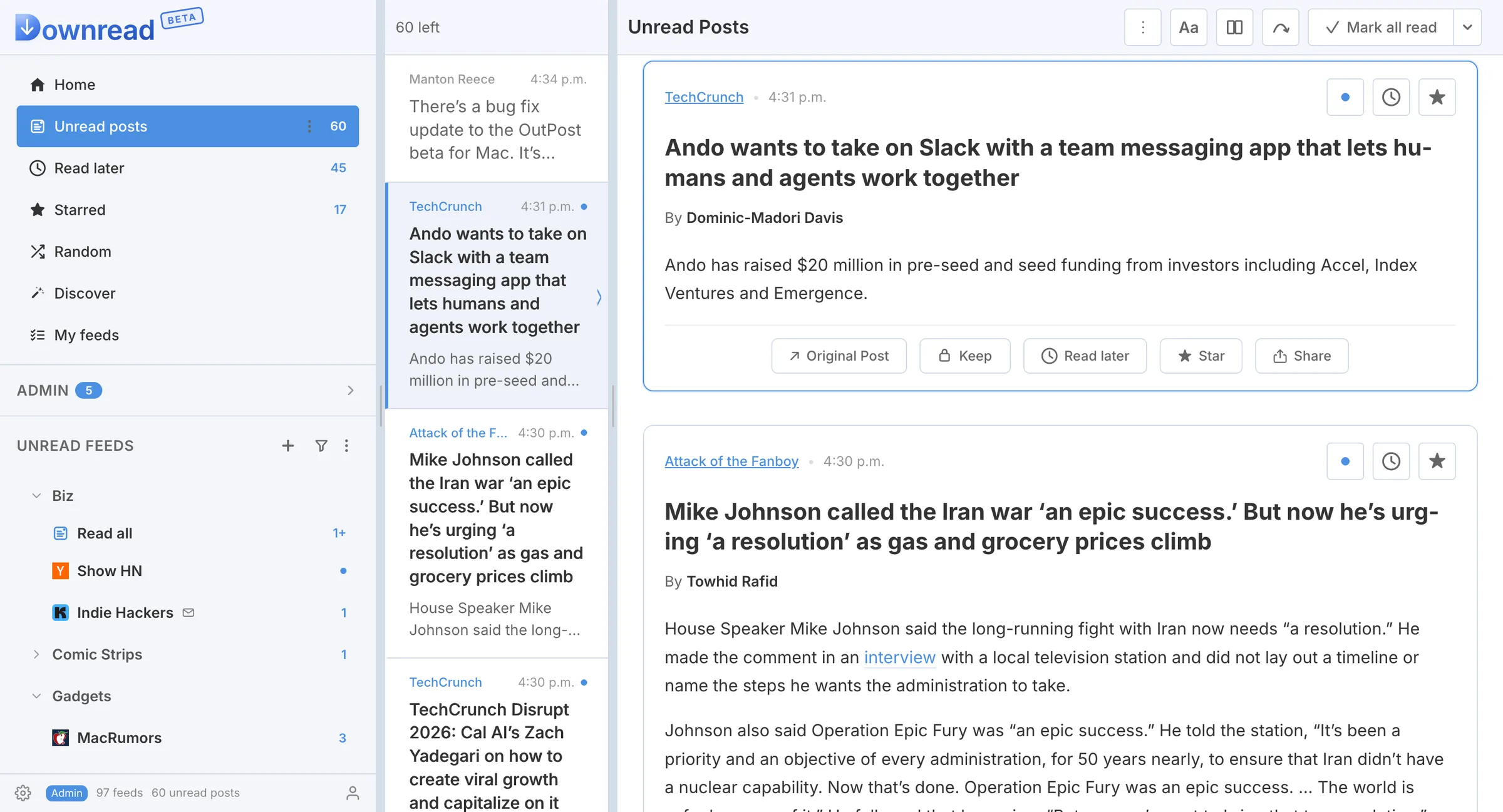
Why does the world need another RSS reader?
Without a doubt, you could argue that there are enough RSS readers. OpenRSS lists 73, and the Wikipedia page lists 63. But I would argue that no reader has ever matched the usability of the defunct Google Reader. Downread strives to be as good, or hopefully even better.
Downread differs from most, if not all, of the readers in the lists above in several points.
Scrolling through posts
A primary difference between Downread and most other RSS readers is that Downread allows you to scroll through a feed’s posts. Most other readers show one post at a time. In Downread, you will be scrolling most of the time. It feels more like scrolling through Facebook or X, which is a UI concept most people are more familiar with and that has stood the test of time.
Flow-oriented UI
Downread’s UI is optimized to let you skim or read articles with the fewest clicks or finger movements. Done with a feed? Just click a button for the next one. Want to skip a feed? There’s a button for that. Want to mark all read? Click on a button. Click twice to get to the next feed.
There are several ways to navigate through the posts within the feed. You can scroll, but when articles are longer, it’s often more convenient to jump post by post. There are buttons for that, optimized for the screen size of your current device. Done with the feed? Don’t even move your finger (or cursor), just hold for a second, and you’re in the next feed.
Especially for those who are reading their posts feed-by-feed, I promise you won’t find a reader nearly as efficient. You can, of course, also read all feeds in a single stream.
I think reading in Downread feels effortless, compared to other readers.
Keyboard-friendly
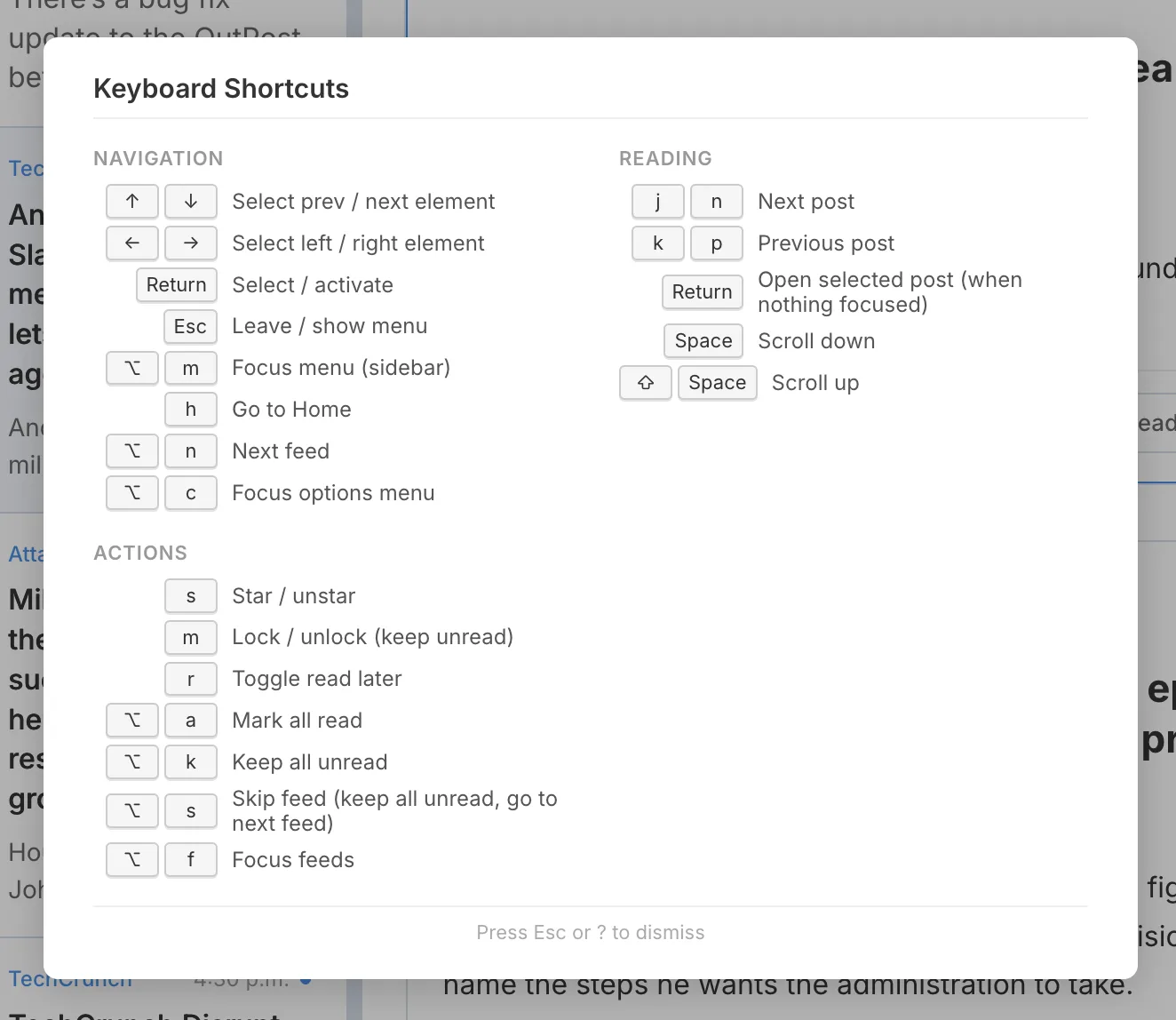
Downread’s UI is designed to be easy to use with a keyboard, and does it better than any other browser application I know. You can use the usual tab-based navigation, but usually it’s faster and more convenient to use the arrow keys. You can use this everywhere. Jump from input field to input field, from link to link, inside the posts and everywhere else. The whole application supports arrow keys like you have probably never seen outside a text terminal.
You can use shortcuts too, of course. Press ? at any time to see the shortcuts that are possible in the current context.
Render every feed perfectly
A huge focus in Downread is making every feed look its best - no matter how broken it is. That means, for example, identifying the caption of an image and rendering it as such. Or recognizing whether a table is meant to display data or for layout, and using the right style. It means recognizing content of common Content Management Systems and supporting their CMS-specific elements. It also means supporting all embeds, like X, Reddit, YouTube, TikTok, and more. For some popular sites, I even maintain custom stylesheets to make their content more readable and more attractive.
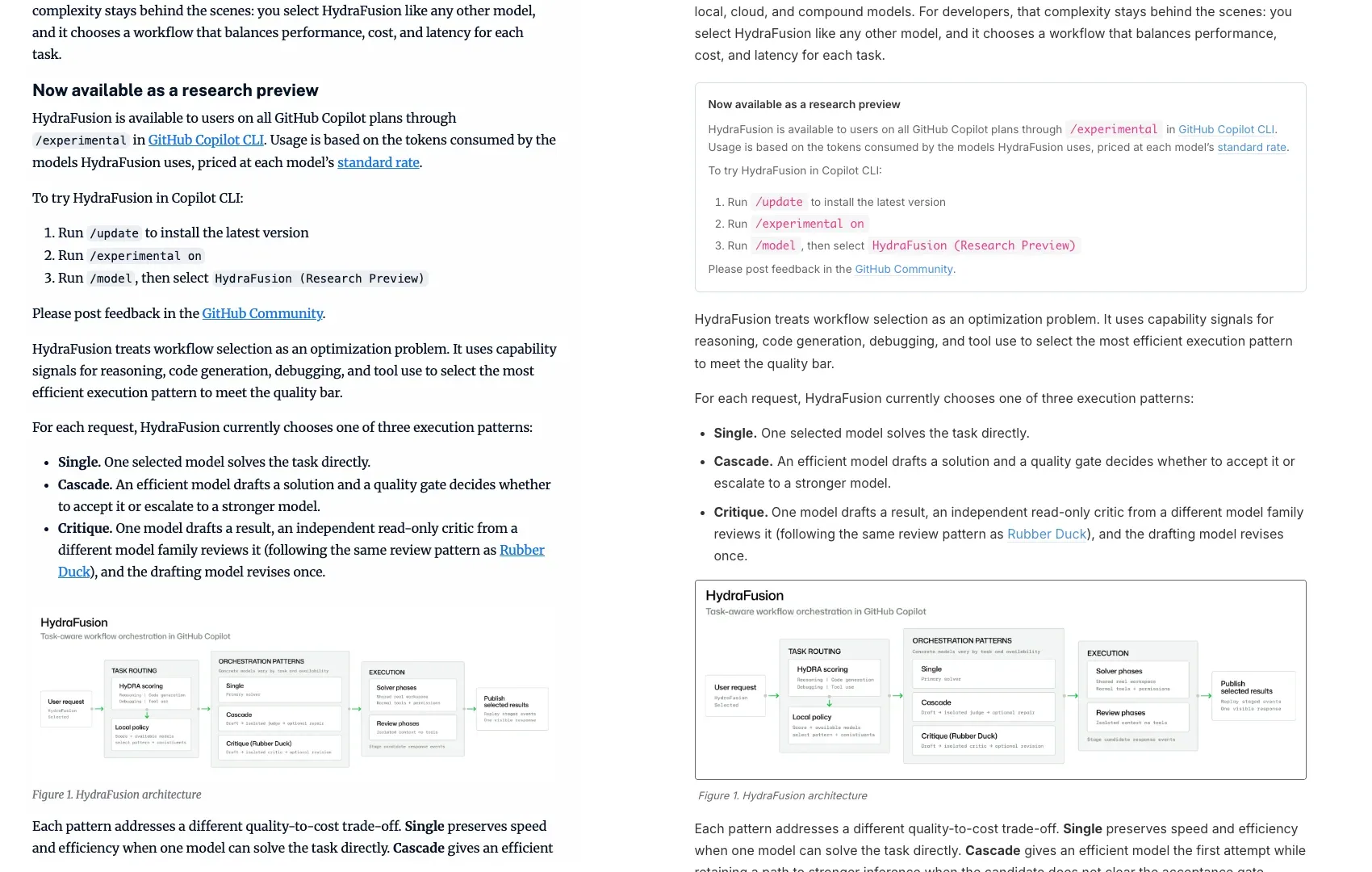
It is an ongoing effort, but it makes a huge difference on those sites that have been optimized.
Managing RSS Posts
Most people who have used RSS readers for a while will know this: you keep adding feeds, and soon you have more posts than you could ever read. Or you skip a day or two, open your RSS reader, and see that hundreds or even thousands of posts have piled up. You could delete them all, but would you miss something? So what do you do?
Downread offers several innovative ways of managing many busy feeds. First of all, when you subscribe to a new feed, it will ask you whether you want to count the number of unread posts or not. The intention is that by disabling the count, you can remove the stress of unread posts piling up. No matter whether you have 1 or 100 unread posts in a feed, it only shows a dot.

The second thing you can do is limit the number of unread posts. If you set it to 100, and new posts come in, Downread makes sure that older unread posts are automatically marked as read, and you only see the latest 100. This makes high-volume feeds much more bearable.
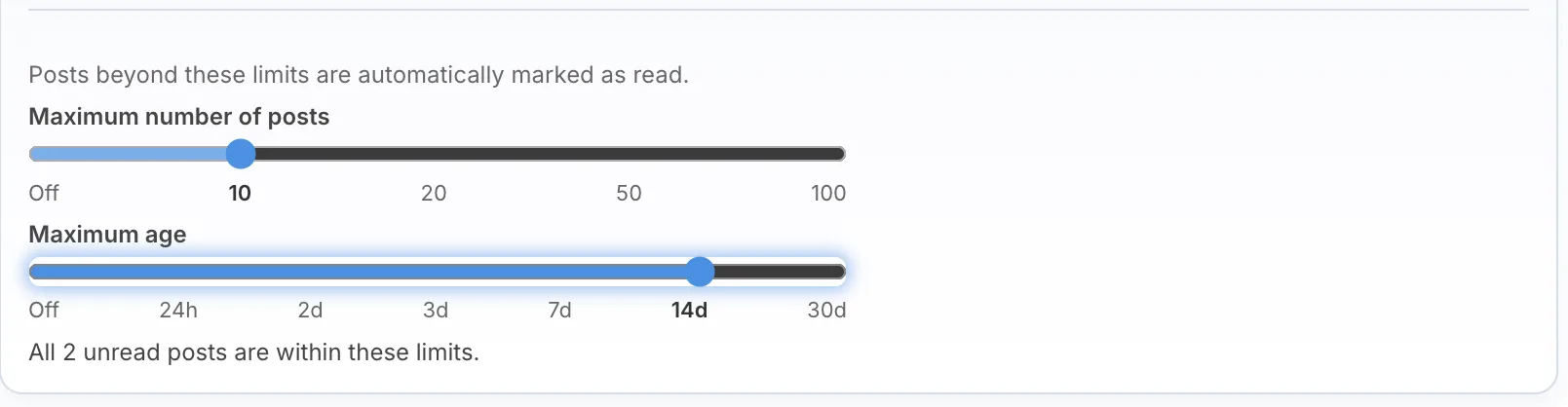
Declaring RSS Bankruptcy
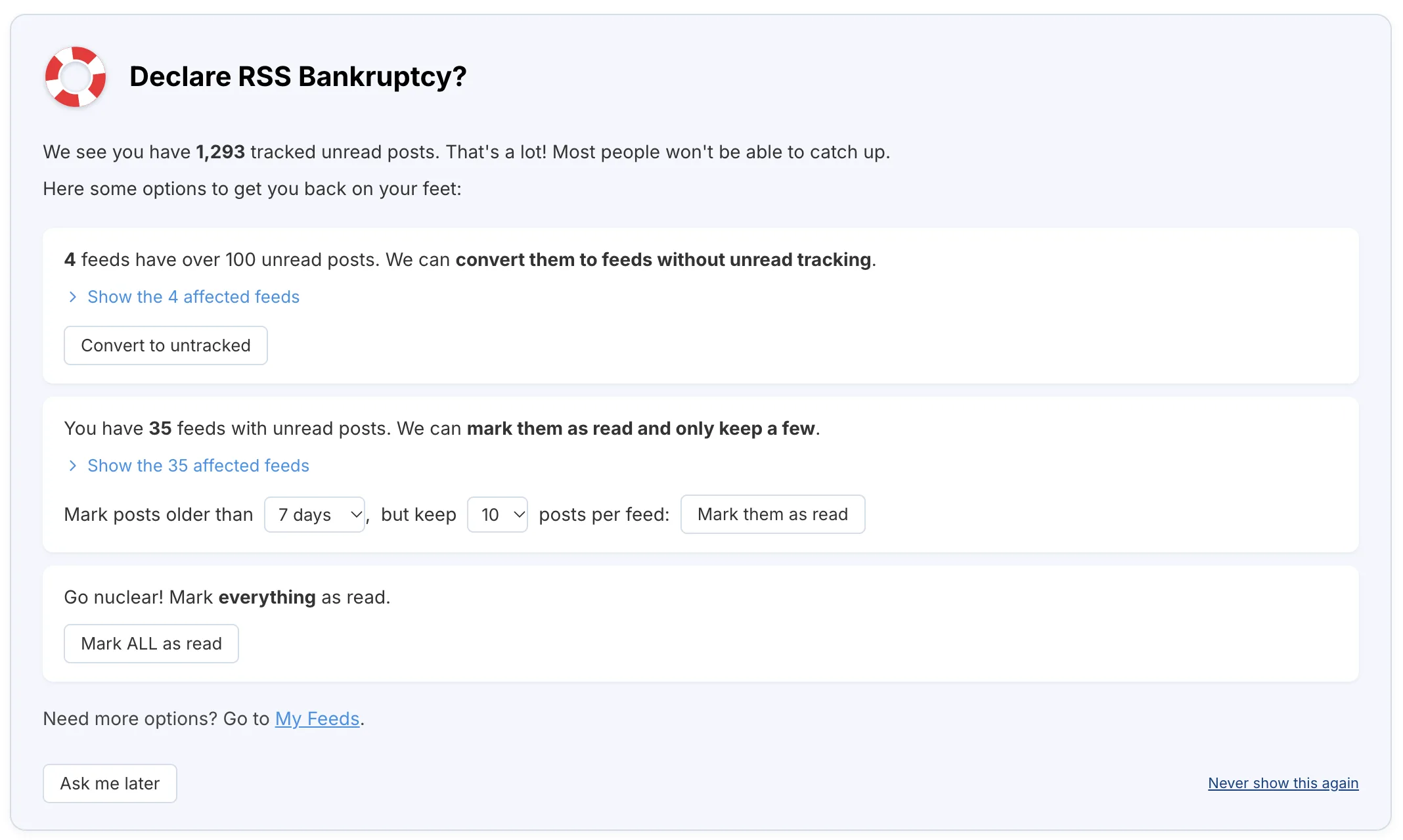
Even when you can limit the posts as shown above, if you don't read posts for a few days they still can pile up. Downread will assist you with the RSS Bankruptcy assistant that can help you get these numbers down quickly.
Managing Feeds
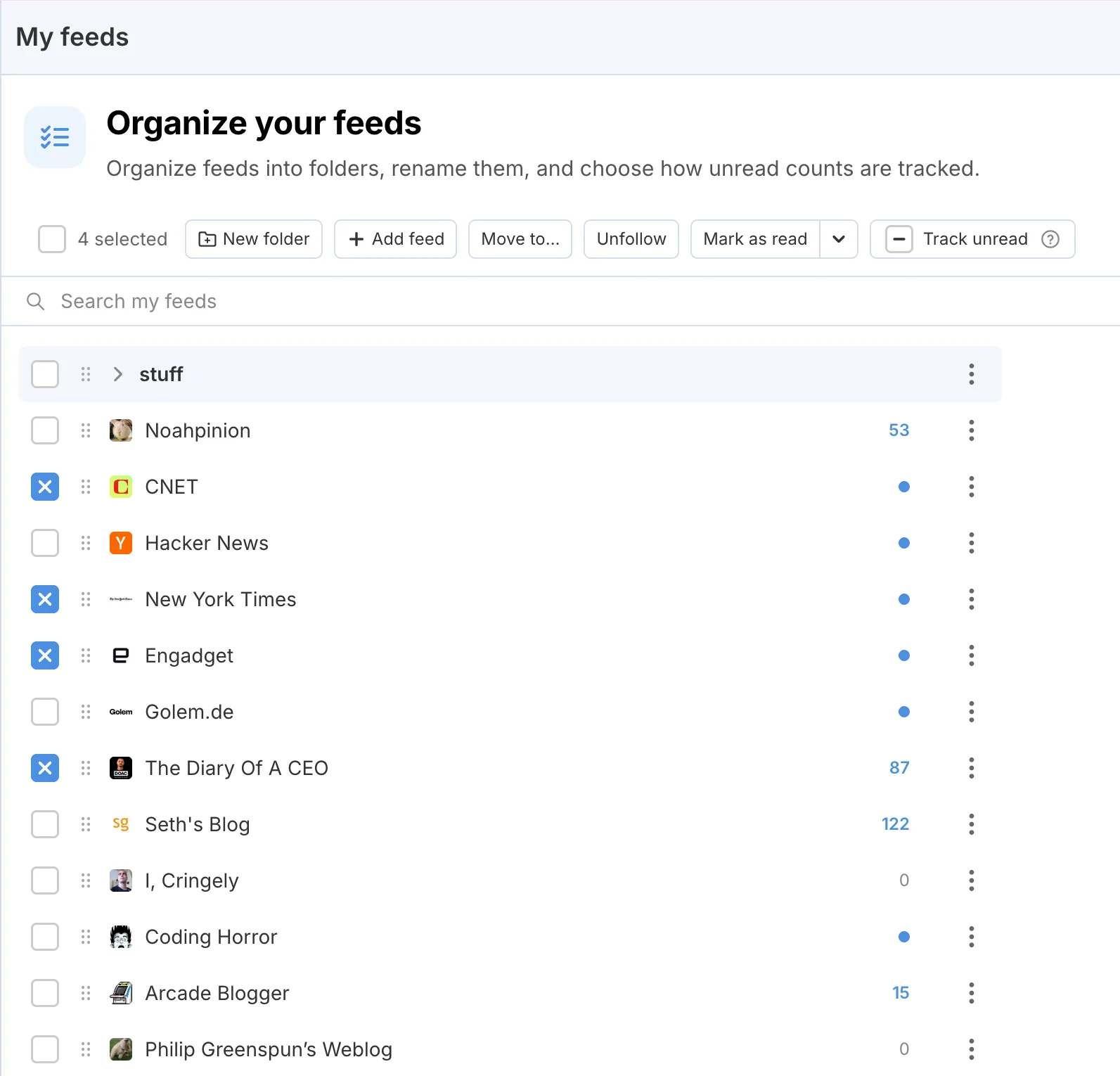
Another feature I haven't seen on any other RSS reader is the My Feeds page. It allows mass operations on feeds. Want to reorganize your feeds and move several into a folder? Just select them and drag and drop them. Want to mark several feeds as read? Select them and mark them all as read.
Experimental Features
Downread supports experimental features like rss.chat and SocialSpec, which you won't find in any other reader. The goal of Downread is to create not only a reader, but at the same time also a free and open alternative to existing social media platforms.
Free for all
Last, but not least: Downread is free. For the first 1000+ users, the quotas will be high enough that they should never notice them. After that, I may need to reevaluate the cost structure, but the intention is that at least the free plans comparable to those in readers like Inoreader and Feedly will stay free forever.